


Let AI assistants trade for you using natural language
📑 Table of Contents
- What is This?
- Features
- Who Is This For?
- Important Disclaimer
- Prerequisites
- Quick Start
- Trading Assistant Skill
- Usage Examples
- Available Operations
- WebSocket Quote Server
- Advanced Configuration
- Roadmap
- Development
- Contributing
- Documentation
- Getting Help
- License
🌟 What is This?
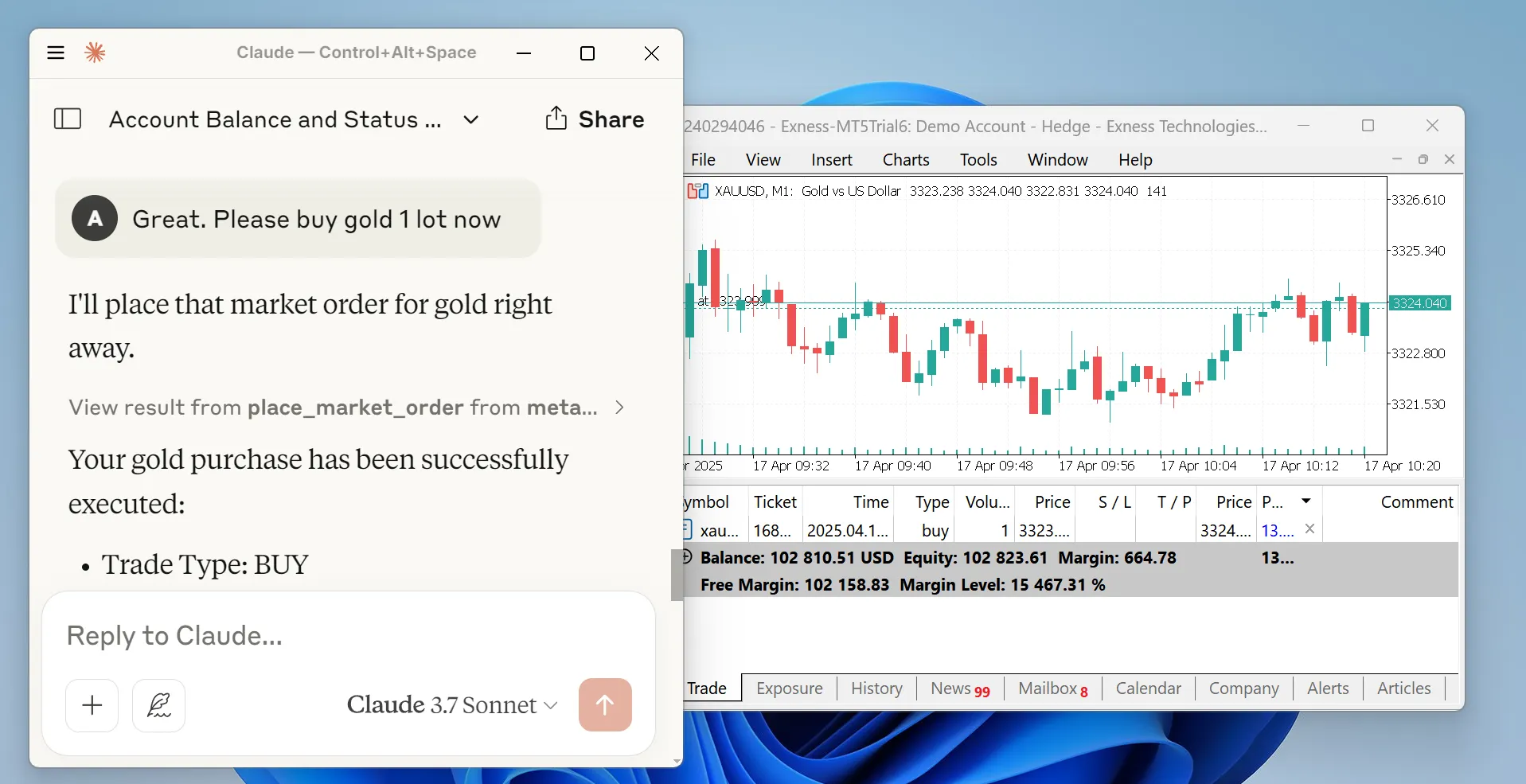
MetaTrader MCP Server is a bridge that connects AI assistants (like Claude, ChatGPT) to the MetaTrader 5 trading platform. Instead of clicking buttons, you can simply tell your AI assistant what to do:
"Show me my account balance" "Buy 0.01 lots of EUR/USD" "Close all profitable positions"
The AI understands your request and executes it on MetaTrader 5 automatically.
How It Works
You → AI Assistant → MCP Server → MetaTrader 5 → Your Trades✨ Features
- 🗣️ Natural Language Trading - Talk to AI in plain English to execute trades
- 🤖 Multi-AI Support - Works with Claude Desktop, ChatGPT (via Open WebUI), and more
- 📊 Full Market Access - Get real-time prices, historical data, and symbol information
- 💼 Complete Account Control - Check balance, equity, margin, and trading statistics
- ⚡ Order Management - Place, modify, and close orders with simple commands
- 🔒 Secure - All credentials stay on your machine
- 🌐 Flexible Interfaces - Use as MCP server, REST API, or WebSocket stream
- 📖 Well Documented - Comprehensive guides and examples
🎯 Who Is This For?
- Traders who want to automate their trading using AI
- Developers building trading bots or analysis tools
- Analysts who need quick access to market data
- Anyone interested in combining AI with financial markets
⚠️ Important Disclaimer
Please read this carefully:
Trading financial instruments involves significant risk of loss. This software is provided as-is, and the developers accept no liability for any trading losses, gains, or consequences of using this software.
By using this software, you acknowledge that:
- You understand the risks of financial trading
- You are responsible for all trades executed through this system
- You will not hold the developers liable for any outcomes
- You are using this software at your own risk
This is not financial advice. Always trade responsibly.
📋 Prerequisites
Before you begin, make sure you have:
- Python 3.10 or higher - Download here
- MetaTrader 5 terminal - Download here
- MT5 Trading Account - Demo or live account credentials
- Login number
- Password
- Server name (e.g., "MetaQuotes-Demo")
🚀 Quick Start
Step 1: Install the Package
Open your terminal or command prompt and run:
pip install metatrader-mcp-serverStep 2: Enable Algorithmic Trading
- Open MetaTrader 5
- Go to
Tools→Options - Click the
Expert Advisorstab - Check the box for
Allow algorithmic trading - Click
OK
Step 3: Choose Your Interface
Pick one based on how you want to use it:
Option A: Use with Claude Desktop (Local STDIO)
-
Find your Claude Desktop config file:
- Windows:
%APPDATA%\Claude\claude_desktop_config.json - Mac:
~/Library/Application Support/Claude/claude_desktop_config.json
- Windows:
-
Open the file and add this configuration:
{
  "mcpServers": {
    "metatrader": {
      "command": "metatrader-mcp-server",
      "args": [
        "--login",     "YOUR_MT5_LOGIN",
        "--password",  "YOUR_MT5_PASSWORD",
        "--server",    "YOUR_MT5_SERVER",
        "--transport", "stdio"
      ]
    }
  }
}Optional: Specify Custom MT5 Terminal Path
If your MT5 terminal is installed in a non-standard location, add the --path argument:
{
  "mcpServers": {
    "metatrader": {
      "command": "metatrader-mcp-server",
      "args": [
        "--login",     "YOUR_MT5_LOGIN",
        "--password",  "YOUR_MT5_PASSWORD",
        "--server",    "YOUR_MT5_SERVER",
        "--transport", "stdio",
        "--path",      "C:\\Program Files\\MetaTrader 5\\terminal64.exe"
      ]
    }
  }
}-
Replace
YOUR_MT5_LOGIN,YOUR_MT5_PASSWORD, andYOUR_MT5_SERVERwith your actual credentials -
Restart Claude Desktop
-
Start chatting! Try: "What's my account balance?"
Option B: Use with Open WebUI (For ChatGPT and other LLMs)
- Start the HTTP server:
metatrader-http-server --login YOUR_LOGIN --password YOUR_PASSWORD --server YOUR_SERVER --host 0.0.0.0 --port 8000Optional: Specify Custom MT5 Terminal Path
If your MT5 terminal is installed in a non-standard location, add the --path argument:
metatrader-http-server --login YOUR_LOGIN --password YOUR_PASSWORD --server YOUR_SERVER --path "C:\Program Files\MetaTrader 5\terminal64.exe" --host 0.0.0.0 --port 8000-
Open your browser to
http://localhost:8000/docsto see the API documentation -
In Open WebUI:
- Go to Settings → Tools
- Click Add Tool Server
- Enter
http://localhost:8000 - Save
-
Now you can use trading tools in your Open WebUI chats!
Option C: Real-Time Quotes via WebSocket
Stream live tick data (bid, ask, spread, volume) over WebSocket for dashboards, bots, or monitoring:
metatrader-quote-server --login YOUR_LOGIN --password YOUR_PASSWORD --server YOUR_SERVERConnect with any WebSocket client:
websocat ws://localhost:8765You'll receive a connected message followed by continuous tick updates as JSON. See WebSocket Quote Server for full details.
Option D: Remote MCP Server (SSE)
Run the MCP server on a Windows VPS (where MT5 is installed) and connect to it remotely from Claude Desktop or Claude Code.
Server-side (on the Windows VPS):
metatrader-mcp-server --login YOUR_LOGIN --password YOUR_PASSWORD --server YOUR_SERVERThis starts the SSE server on 0.0.0.0:8080 by default. Customize with --host and --port:
metatrader-mcp-server --login YOUR_LOGIN --password YOUR_PASSWORD --server YOUR_SERVER --host 127.0.0.1 --port 9000Client-side (Claude Desktop config on your local machine):
{
  "mcpServers": {
    "metatrader": {
      "url": "http://VPS_IP:8080/sse"
    }
  }
}Replace VPS_IP with your server's IP address.
Security Warning: The MCP protocol does not include authentication. When exposing the SSE server over a network, use a firewall to restrict access by IP, or place it behind a reverse proxy with authentication, or use an SSH tunnel.
🤖 Trading Assistant Skill (Claude Code / Claude Desktop)
A pre-built Trading Terminal Assistant skill is included in the claude-skill/ directory. It provides Claude with structured knowledge about all 32 trading tools, output formatting, and MetaTrader 5 domain expertise.
Installing for Claude Code
Option 1: Symlink (recommended)
Create a symlink from the standard Claude Code skills directory to claude-skill/:
cd metatrader-mcp-server
mkdir -p .claude
ln -s ../claude-skill .claude/skillsThe skill will be auto-discovered and available as /trading.
Option 2: Copy
Copy the skill files into the Claude Code skills directory:
cd metatrader-mcp-server
mkdir -p .claude/skills
cp -r claude-skill/trading .claude/skills/tradingInstalling for Claude Desktop
For Claude Desktop, copy the skill to the global Claude skills directory:
# macOS
mkdir -p ~/Library/Application\ Support/Claude/skills
cp -r claude-skill/trading ~/Library/Application\ Support/Claude/skills/trading

# Windows
mkdir "%APPDATA%\Claude\skills"
xcopy /E claude-skill\trading "%APPDATA%\Claude\skills\trading\"What the Skill Does
- Direct Execution: Executes trades immediately when requested, no extra confirmation needed
- Workflows: Knows how to chain tools for complex operations (e.g., place market order then set SL/TP)
- Formatting: Presents account data, positions, orders, and prices in clean terminal-style tables
- Domain Knowledge: Understands MT5 order types, timeframes, symbol formats, and filling modes
Usage
Once installed, invoke with /trading or just ask trading-related questions naturally:
/trading
> Show me my account dashboard
> Buy 0.1 lots of EURUSD with SL at 1.0800
> Close all profitable positions
> Show me GBPUSD H4 candles📡 WebSocket Quote Server
The WebSocket Quote Server streams real-time tick data from MetaTrader 5 to any WebSocket client. It's ideal for live dashboards, algorithmic trading frontends, and real-time monitoring.
Starting the Server
metatrader-quote-server --login YOUR_LOGIN --password YOUR_PASSWORD --server YOUR_SERVERThe server starts on ws://0.0.0.0:8765 by default.
Customization
metatrader-quote-server \
  --login YOUR_LOGIN \
  --password YOUR_PASSWORD \
  --server YOUR_SERVER \
  --host 127.0.0.1 \
  --port 9000 \
  --symbols "EURUSD,GBPUSD,XAUUSD" \
--poll-interval 200Configuration
| Flag | Env Var | Default | Description |
|---|---|---|---|
--host | QUOTE_HOST | 0.0.0.0 | Host to bind |
--port | QUOTE_PORT | 8765 | Port to bind |
--symbols | QUOTE_SYMBOLS | XAUUSD,USOIL,GBPUSD,USDJPY,EURUSD,BTCUSD | Comma-separated symbols to stream |
--poll-interval | QUOTE_POLL_INTERVAL_MS | 100 | Tick polling interval in milliseconds |
CLI flags take precedence over environment variables, which take precedence over defaults.
Message Format
On connect — server sends a connected message with the symbol list, followed by any cached ticks:
{"type": "connected", "symbols": ["XAUUSD", "EURUSD", "GBPUSD"], "poll_interval_ms": 100}Tick updates — sent whenever bid, ask, or volume changes:
{"type": "tick", "symbol": "XAUUSD", "bid": 2345.67, "ask": 2345.89, "spread": 0.22, "volume": 1234, "time": "2026-03-14T10:30:45+00:00"}Errors — sent if a symbol cannot be fetched:
{"type": "error", "symbol": "INVALID", "message": "Symbol not found or data unavailable"}Example: Connecting with Python
import asyncio
import json
from websockets.asyncio.client import connect

async def main():
    async with connect("ws://localhost:8765") as ws:
        async for message in ws:
            tick = json.loads(message)
            if tick["type"] == "tick":
                print(f"{tick['symbol']}: {tick['bid']}/{tick['ask']} (spread: {tick['spread']})")

asyncio.run(main())Design Notes
- Change detection: Only broadcasts when bid, ask, or volume actually changes, reducing unnecessary traffic.
- Late joiners: New clients receive cached ticks immediately on connect, so they don't have to wait for the next change.
- MT5 thread safety: All MT5 SDK calls are serialized through a single-thread executor
…