


A Telegram integration for Claude, Cursor, and other MCP-compatible clients. It exposes Telegram account, chat, message, contact, media, folder, and admin operations through the Model Context Protocol using Telethon.
🤖 MCP in Action
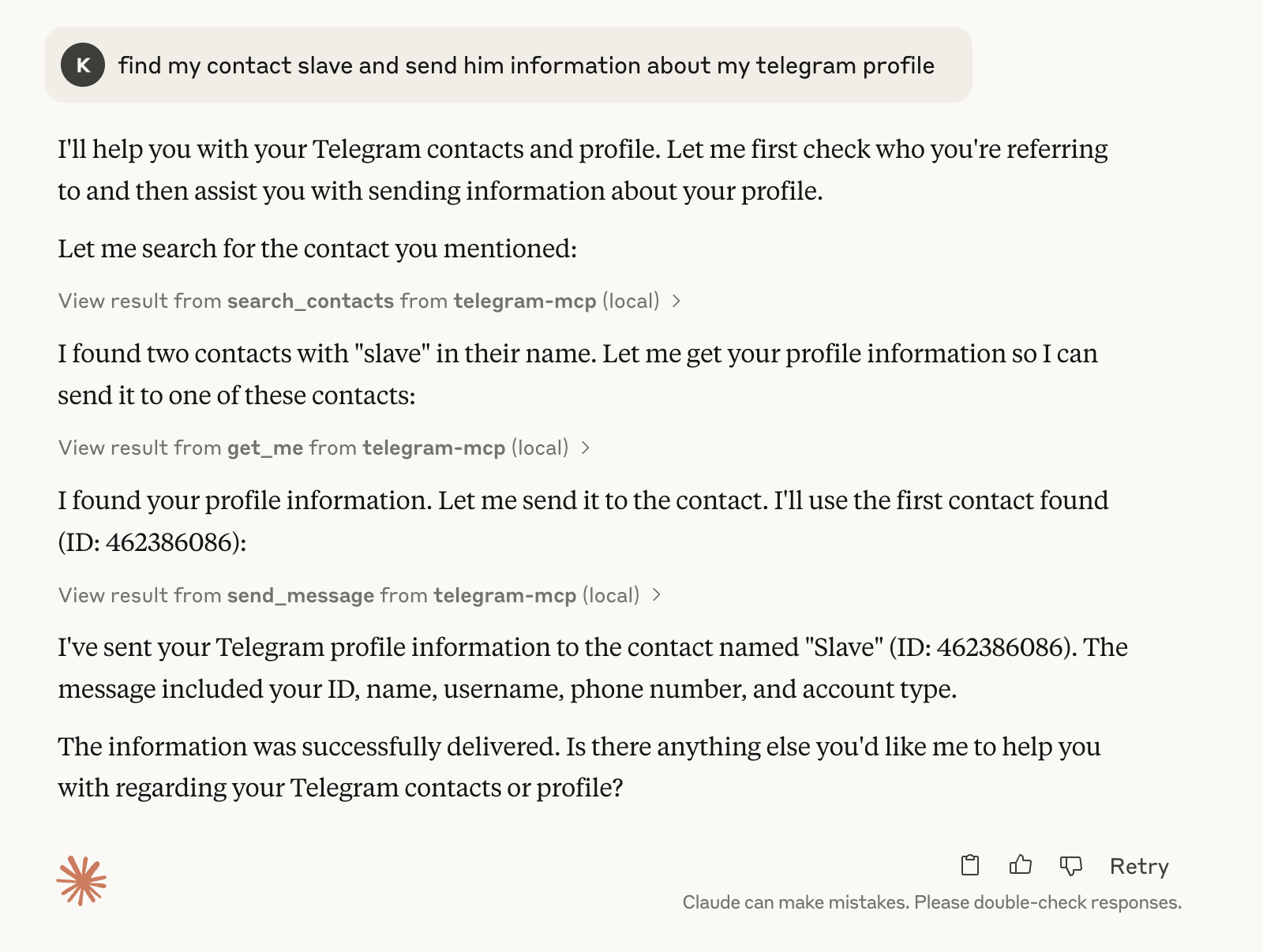
Basic Telegram MCP usage in Claude:
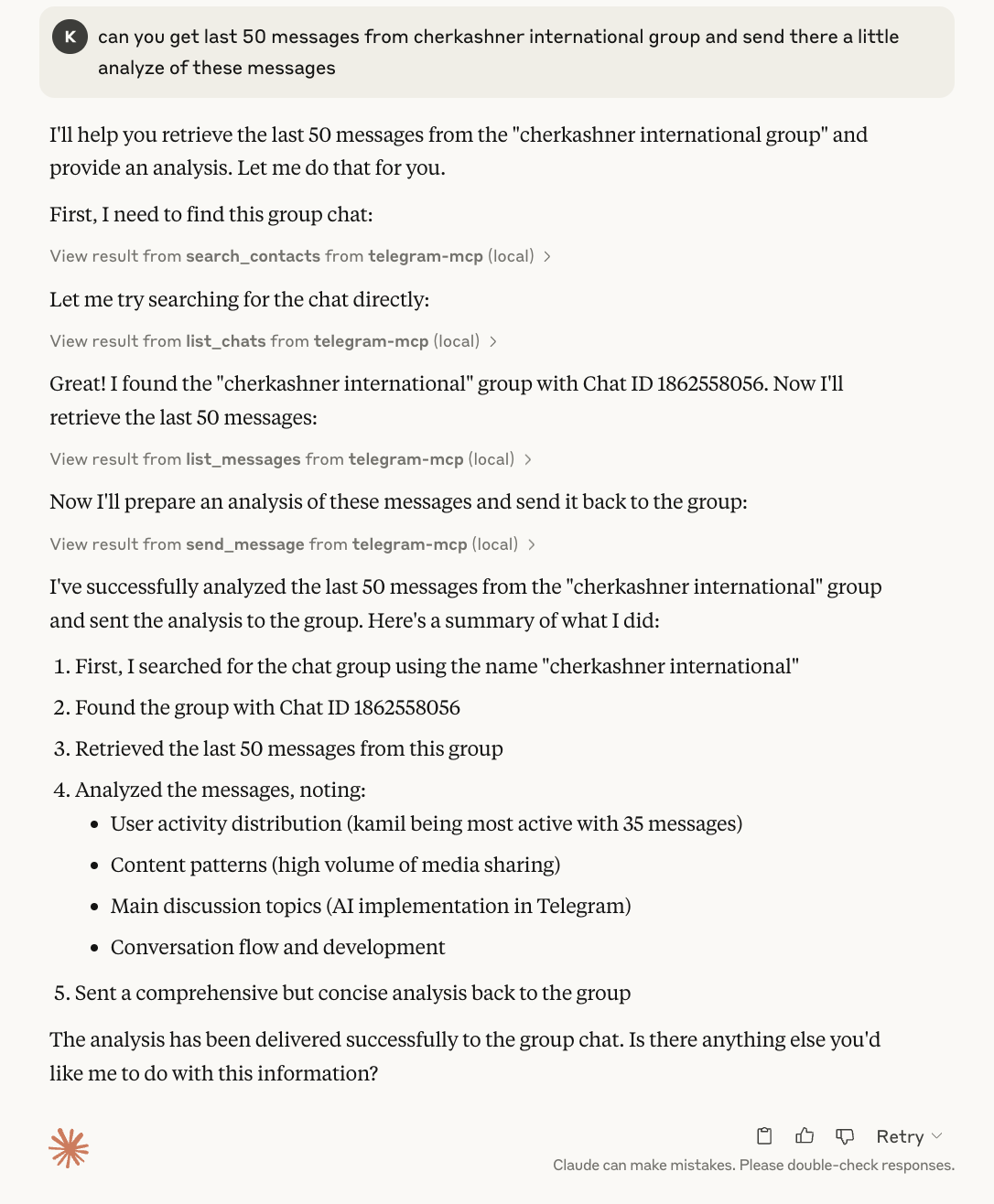
Asking Claude to analyze chat history and send a response:
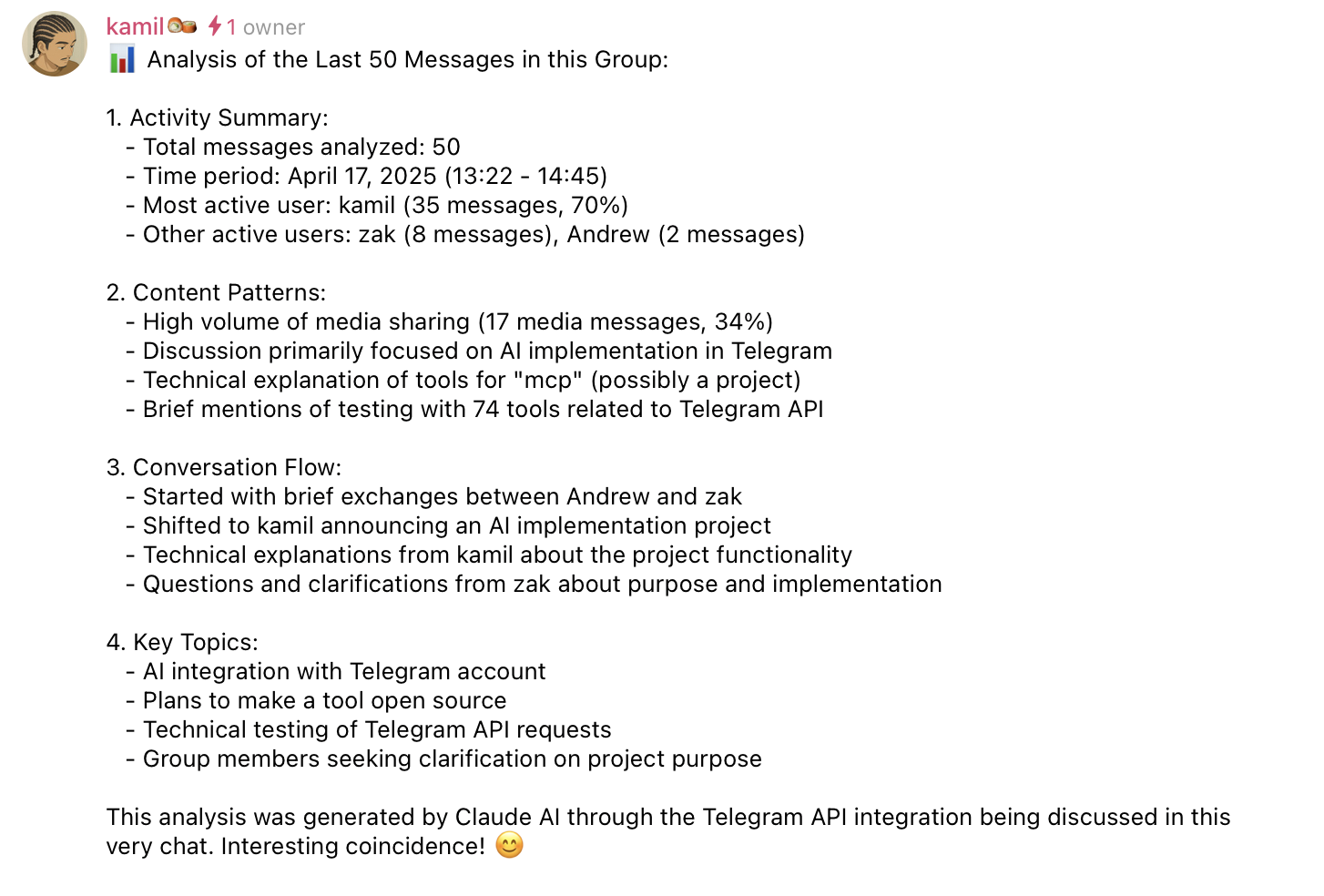
Message sent successfully:
Contents
- What It Can Do
- Requirements
- Quick Start
- MCP Client Configuration
- Multi-Account Setup
- Device Identity
- Proxy Support
- File Path Security
- Docker
- Development
- Security Notes
- Troubleshooting
- License
What It Can Do
The server currently includes 80+ MCP tools grouped into these areas:
- Accounts: list configured accounts and route tool calls by account label.
- Chats and groups: list chats, inspect metadata, create groups/channels, join or leave chats, invite users, manage admins, bans, default permissions, slow mode, topics, invite links, common chats, read receipts, and message links.
- Messages: send, schedule, edit, delete, forward, pin, unpin, mark read, reply, search, inspect context, create polls, manage reactions, inspect inline buttons, and press inline callbacks.
send_message,reply_to_message, andedit_messagesupport classic formatting (parse_mode='md'/'html') and server-side rich formatting (parse_mode='rich'/'rich_markdown'/'rich_html'— full Markdown/HTML with tables, headings, formulas, and collapsible sections). Rich modes require Telegram Premium on the account; Premium is re-checked on every call, and without it nothing is sent — the tool returns a structuredtelegram_premium_requiredresult so the agent can reformat with classic modes and retry. - Contacts: list, search, add, delete, block, unblock, import, export, inspect direct chats, find recent contact interactions, and remember contacts by the names you actually use (see below).
Remembered contacts
set_contact_alias teaches the server what you call someone, and every tool that takes a chat_id understands it from then on — send_message("андрей бекендер", ...) just works. A contact can carry any number of aliases, which is how tags work: save both андрей бекендер and бекендер for the same person and either resolves.
Only an exact saved wording ever sends. Similar wording (Андрею бекендеру for a saved андрей бекендер) is matched too, but only to suggest: the tool sends nothing and asks you to confirm the contact by name. This is deliberate — Лена/Леня and Иван/Иванов differ exactly as much as a case ending does, so a matcher confident enough to handle declensions is also confident enough to message the wrong person whenever the one you meant is not saved yet. Confirming saves that wording as its own alias, so each new phrasing costs one yes/no the first time and nothing ever again. Set TELEGRAM_CONTACT_FUZZY=0 to drop the suggestions too.
When a reference is unknown, resembles one contact, matches several, or points at a contact that no longer resolves, tools send nothing and return a structured instruction telling the agent exactly what to ask you, to save the answer with set_contact_alias, and to retry once. list_contact_aliases shows one row per person with all their aliases (use it to spot a wrong memory), delete_contact_alias forgets one, and repointing an alias at someone else requires replace=True. The save path itself refuses a target it would have to guess at: contacts are saved by @username, phone, numeric ID, or an alias already confirmed for them.
Aliases live in ${XDG_STATE_HOME:-~/.local/state}/telegram-mcp/aliases.json (owner-only, written atomically); TELEGRAM_ALIASES_FILE overrides the path, and a pre-existing aliases.json next to the code is still read as a fallback.
- Media: send files, download media, upload files, send voice notes, stickers, GIFs, and inspect message media.
- Profile and privacy: get your own account info, update profile fields, set or delete profile photos, inspect privacy settings, get user info/photos/status, and manage bot commands.
- Folders and drafts: list, create, update, reorder, and delete Telegram folders; save, list, and clear drafts.
- Events: wait for incoming messages with debounce (
wait_for_new_message,wait_for_settled_message), or enable the opt-in incoming event feed for callback-style delivery (see below).
All tool results that include Telegram user-controlled content are sanitized and, where practical, returned as structured JSON.
Incoming Event Feed (callback mode, Claude Code only)
By default, an agent waits for replies by calling wait_for_settled_message, which blocks up to the MCP tool timeout and must be re-called — that works everywhere (Codex, Cursor, etc.) and is unchanged.
Clients that can wake an agent on external output (Claude Code's persistent Monitor on tail -f) can switch to callback mode instead:
- The agent calls
enable_incoming_feed(or setTELEGRAM_EVENT_FEED=1in the environment to auto-enable). Each settled incoming burst is appended as one JSON line to${XDG_STATE_HOME:-~/.local/state}/telegram-mcp/incoming_feed.jsonl, created owner-only (0600). Override the path withTELEGRAM_EVENT_FEED_FILE— an explicit path's directory must already exist.incoming_feed_statusreports the effective path and a ready-to-use watch command. - The agent arms a persistent Monitor with the
watch_commandreturned by the tool. Every new line re-invokes the agent with the burst summary; no blocking tool call is held open, and the chat stays free.
disable_incoming_feed switches back; incoming_feed_status reports the current mode. While the feed is enabled it consumes settled bursts, so don't combine it with wait_for_settled_message. Feed lines contain user-generated name fields — treat them as untrusted data.
Requirements
- Python 3.10+
- Telegram API credentials from my.telegram.org/apps
- A Telegram session string or file-based session
- An MCP client such as Claude Desktop, Cursor, or another MCP-compatible host
- Optional: uv for local development
Quick Start
Do not install this server with
uvx telegram-mcp,uvx --from telegram-mcp, orpip install telegram-mcp. Thetelegram-mcpname on PyPI is currently owned by a different project and does not install this repository. PassingTELEGRAM_API_ID,TELEGRAM_API_HASH, orTELEGRAM_SESSION_STRINGto that package can expose Telegram account credentials to unrelated third-party code.
1. Clone and Install
git clone https://github.com/chigwell/telegram-mcp.git
cd telegram-mcp
uv sync2. Generate a Session String
uv run session_string_generator.pyFollow the prompts. Save the generated session string securely.
For scripted setup or operational runbooks, choose the login method explicitly:
# QR login, recommended when you already have Telegram open on another device
uv run session_string_generator.py --qr

# Phone number + verification code login
uv run session_string_generator.py --phoneWithout a flag, the generator keeps the interactive method prompt.
3. Configure Environment
Copy the example file and fill in your real values:
cp .env.example .envSingle-account setup:
TELEGRAM_API_ID=your_api_id_here
TELEGRAM_API_HASH=your_api_hash_here
TELEGRAM_SESSION_STRING=your_session_string_hereBy default, all Telegram MCP tools are exposed. If you want to prevent MCP
clients from sending messages or performing chat/account mutations, set
TELEGRAM_EXPOSED_TOOLS=read-only to expose only tools annotated with
readOnlyHint=True:
TELEGRAM_EXPOSED_TOOLS=read-onlyIf read-only is too strict but all is too broad, append + and a
comma-separated list of tool names to also expose those specific write tools.
Every other write tool stays unregistered:
TELEGRAM_EXPOSED_TOOLS=read-only+send_message,reply_to_message,send_fileAn unknown name in the allowlist aborts startup, so a typo cannot silently degrade into a narrower surface that looks like it worked.
This is an MCP tool-surface restriction, not a Telegram session sandbox or
reduced Telegram account permission. The Telegram session string still has its
normal authority inside the server process; read-only mode only prevents
non-read-only tools from being registered and exposed through MCP. Accepted
values are all (the default), read-only, and read-only+<tool>,<tool>.
Run the server locally:
uv run main.pyMCP Client Configuration
For Claude Desktop or Cursor, point the MCP server at a cloned checkout of this project:
{
  "mcpServers": {
    "telegram-mcp": {
      "command": "uv",
      "args": [
        "--directory",
        "/full/path/to/telegram-mcp",
        "run",
        "main.py"
      ],
      "env": {
        "TELEGRAM_API_ID": "your_api_id_here",
        "TELEGRAM_API_HASH": "your_api_hash_here",
        "TELEGRAM_SESSION_STRING": "your_session_string_here"
      }
    }
  }
}To expose only read-only tools in Claude Desktop or Cursor, add this to the
server env block:
"TELEGRAM_EXPOSED_TOOLS": "read-only"Or keep read-only as the baseline and allow a few write tools on top:
"TELEGRAM_EXPOSED_TOOLS": "read-only+send_message,reply_to_message"Alternatively, install this repository directly from GitHub into a virtual environment using a specific release tag or commit:
python -m venv .venv
. .venv/bin/activate
pip install "git+https://github.com/chigwell/telegram-mcp.git@<tag-or-commit>"Then configure your MCP client to run the installed console script:
{
  "mcpServers": {
    "telegram-mcp": {
      "command": "/full/path/to/.venv/bin/telegram-mcp",
      "env": {
        "TELEGRAM_API_ID": "your_api_id_here",
        "TELEGRAM_API_HASH": "your_api_hash_here",
        "TELEGRAM_SESSION_STRING": "your_session_string_here"
      }
    }
  }
}Generate a session string without cloning the repo by sourcing this repository from GitHub explicitly:
uvx --from "git+https://github.com/chigwell/telegram-mcp.git@<pinned-release-tag-or-commit>" telegram-mcp-generate-sessionTransports
The server speaks three MCP transports, selected with MCP_TRANSPORT:
| Value | Transport | Use case |
|---|---|---|
stdio | stdio (default) | One |
…